

If you want to manually flash stock firmware on a modern Sony Xperia phone, Newflasher is still one of the most useful tools to keep around. It gives you a direct way to install downloaded firmware files, recover from a bad update, move to another regional package, or return to clean stock software/firmware without waiting for Sony’s staged OTA rollout.
A lot of older Newflasher guides on the Internet are still floating around with outdated version numbers, overly rigid prerequisites, and generic step lists that do not explain what each Xperia tool actually does. This refreshed guide fixes that. You can use it to download the latest official Newflasher v60 package, understand what else you need around it, and follow a safer firmware flashing workflow on supported Xperia phones.
Here is everything in one place: the current version details, the latest official package links, the supporting tools you may still need, the difference between a clean flash and a keep-data update, and the safety notes that matter before you touch firmware files.
What Is Newflasher?
Newflasher is an experimental command-line Sony Xperia flashing utility created by munjeni. Its job is straightforward: you place the correct Newflasher build inside a downloaded Xperia firmware folder, then use it to flash the firmware files in Flashmode.
That is also why it helps to separate the surrounding Xperia tool stack properly:
- XperiFirm downloads Xperia firmware packages for the correct model and region.
- Newflasher flashes those firmware files to the phone.
- Xperia Companion is useful for official Sony drivers on Windows and for software repair.
- Sony Mobile Flasher / FlashTool is optional now, but still useful for users who want its XperiFirm integration or older Sony Xperia Android workflows.
This split matters because the older habit of calling everything a “flash tool” creates the wrong expectations. XperiFirm is not the flasher, it is just a firmware downloader. Xperia Companion is not the flasher, it is simply a USB drivers package. Newflasher is the utility that actually handles the flashing stage in this workflow.
Latest Version and Why This Refresh Matters
The latest upstream Newflasher tag is v60, published on 2026-04-16 by the developer / maintainer.
Recent milestones worth knowing before you start:
| Version | Date | What changed |
|---|---|---|
| v60 | 2026-04-16 | Latest tagged release |
| v59 | 2026-01-09 | Fix for reboot bootloader command on 2019+ Xperia devices |
| v58 | 2025-03-20 | General fixes |
| v57 | 2023-07-06 | Added Xperia 1 V support |
| v56 | 2023-04-05 | Corrected GordonGate driver link |
| v52 | 2021-10-01 | Added a proper prompt for keeping user data during flashing |
The v52 change is especially important because many old Newflasher tutorials still tell users to start deleting files manually if they want to preserve their data. That is not the first recommendation anymore when you are using a newer (current) build.
Newflasher Compatibility
The safest compatibility line to use is the one documented by the upstream project itself: Newflasher is meant for Sony Xperia phones including and newer than the Xperia XZ Premium.
That is much safer than copy-pasting a giant static phone list and pretending it is still perfectly current. What we can confirm more confidently from the release history is this:
- support has long covered the Xperia XZ Premium generation and newer
- Xperia 1 support arrived early in the tool’s life cycle
- Mark III device support was added in the v43/v44 window
- Xperia 1 V support was added in
v57 - later builds added fixes for newer-generation reboot behavior and modern flashing flow edge cases
In practical terms, Newflasher remains the right tool family for modern Sony Xperia firmware flashing. What still matters most is not the marketing name of the phone, but that the firmware package matches your exact model and intended region.
If the firmware package does not match your device, stop there. That is where many avoidable flashing failures begin.
Download Newflasher v60 and Supporting Tools
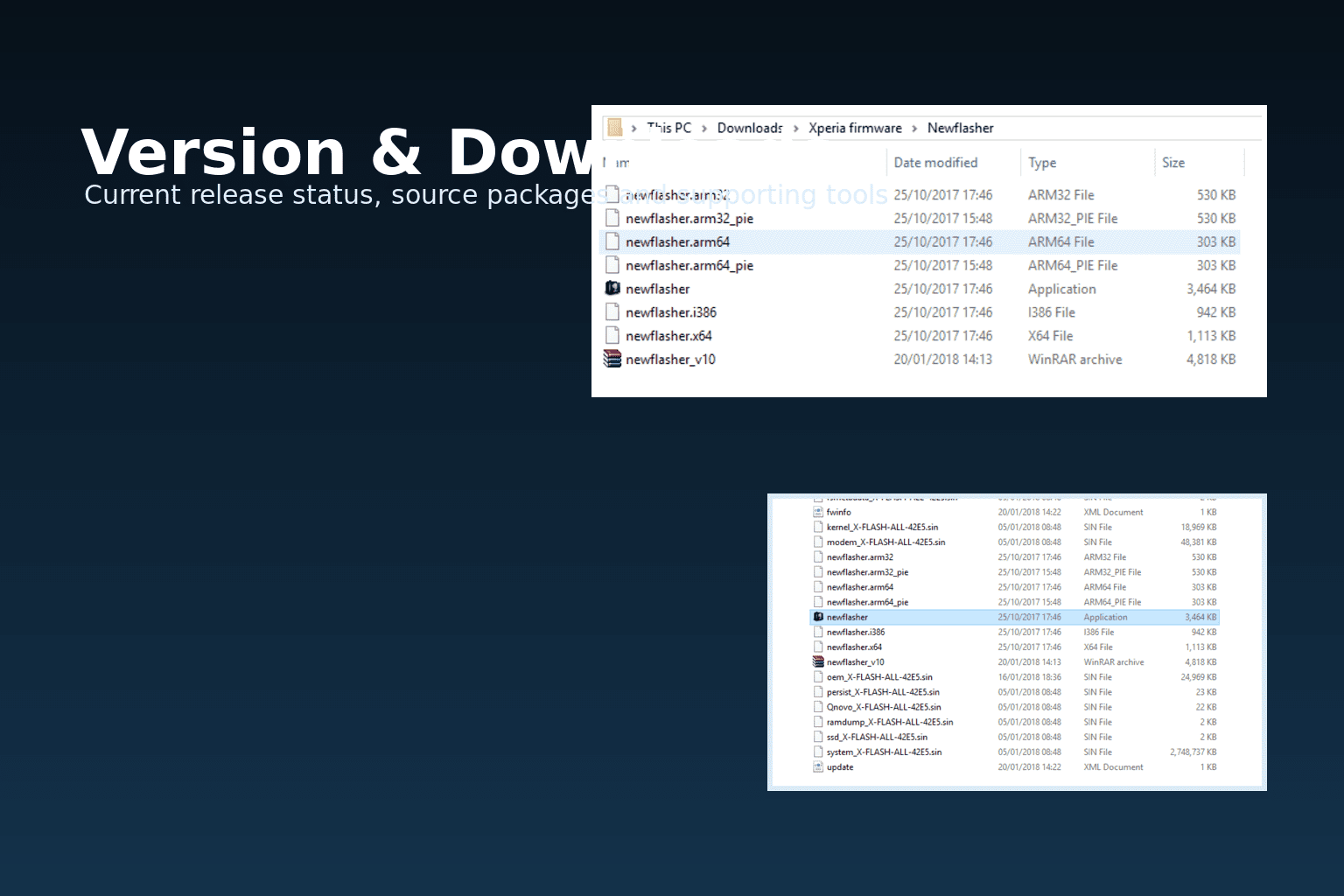
The latest official Newflasher package is currently available as source archives. You can download Newflasher v60 below:
Latest official Newflasher packages
| Package | Best for | Download |
|---|---|---|
| Newflasher v60 Source ZIP | Users who want the latest official ZIP package | Download Newflasher v60 Source ZIP |
| Newflasher v60 Source TAR.GZ | Users who prefer the TAR.GZ package layout | Download Newflasher v60 Source TAR.GZ |
Supporting tools you may still need
| Tool | Why you might need it | Link |
|---|---|---|
| XperiFirm | Download the correct Xperia firmware package for your model and region | Download XperiFirm |
| Xperia Companion | Install Sony drivers on Windows and use official software repair tools | Download Xperia Companion |
| Sony Mobile Flasher | Optional older Xperia workflow with built-in XperiFirm integration | Download Sony Mobile Flasher |
| Android SDK Platform Tools | Useful for advanced slot, fastboot, or rooted workflows | Android Platform Tools |
Which build variant should you actually use?
The current upstream project documents multiple build targets, including these familiar names:
| Build target | Typical use |
|---|---|
newflasher.exe | Windows |
newflasher.x64 | Linux 64-bit |
newflasher.i386 | Linux 32-bit |
newflasher.arm32 | Android ARM 32-bit |
newflasher.arm64 | Android ARM 64-bit |
newflasher.arm64_pie | Android ARM64 PIE builds |
| Darwin build | macOS |
That does not mean every current tagged package ships as a ready-to-run bundle with all binaries laid out for you. The latest official v60 package is published as a source archive, so if you are validating the latest release specifically, keep that in mind and follow the project workflow you trust for the executable you use.
Before You Flash Anything
This is the part that saves devices. Do not treat it as filler.
1. Confirm your exact Xperia model number
On your phone, go to:
Settings > About phone
Write down the exact model number. Do not rely on the commercial device name alone i.e. Sony Xperia III.
2. Download the correct firmware package
The firmware package must match:
- your exact model variant (product codename)
- the intended region
- the firmware branch you actually want to install
If you flash the wrong package, you can end up with verification failures, bootloops, or worse i.e. brick your phone permanently.
3. Back up your important data
Even if you intend to keep your data, firmware flashing is not risk-free. Back up photos, documents, app data, and anything else you care about before you continue.
4. Make sure the phone is charged
Newflasher added low-battery warnings for a reason. Do not start a flash with the phone sitting near the danger zone. General rule of thumb is to make sure your phone at least has 60% battery.
5. Use a reliable cable and USB port
If a USB 2.0 / USB 3.0 port is available, it is still worth preferring it for this kind of work. Some of the best-known Newflasher timeout issues trace back to cable quality, USB controller behavior, or unstable ports.
6. Close software that may interfere
If Xperia Companion, FlashTool, or anything else is trying to talk to the device in the background, close it completely before you launch Newflasher.
Step 1: Download Xperia Firmware with XperiFirm
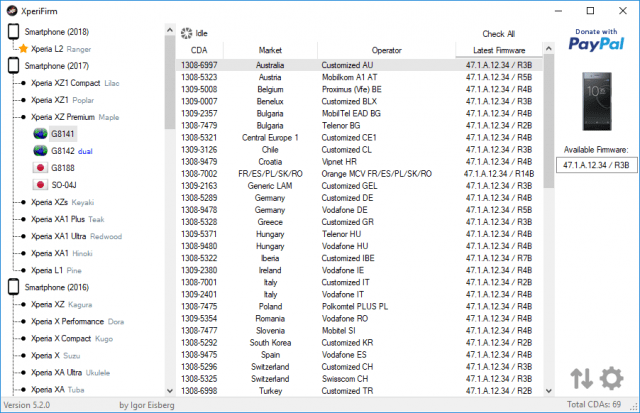
For most users, the workflow starts here.
- Launch XperiFirm.
- Find your exact Xperia model.
- Choose the correct firmware region or customization.
- Download the firmware package.
- Let the tool finish creating the firmware folder.
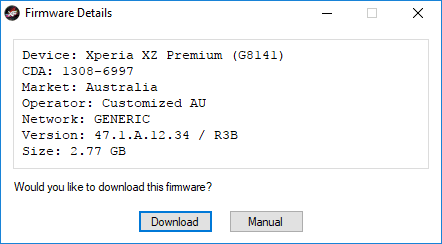
If you prefer the older FlashTool-integrated path, you can still open XperiFirm from inside FlashTool. Just remember what each utility is doing: XperiFirm handles the firmware download, while Newflasher handles the flashing stage afterward.
Step 2: Prepare the Firmware Folder Correctly
Once the firmware download finishes:
- Open the downloaded firmware folder.
- Put the correct Newflasher build in that same folder.
- Make sure the folder only contains the files you actually intend to flash.
This matters because Newflasher flashes what it finds in the working firmware directory.
One older piece of Xperia advice still needs cleanup here: many recycled guides tell users to blindly delete all .ta files before every flash. That is not the right default instruction for a modern general guide. The better approach is to use the correct package, understand the prompts you are being shown, and only make manual file-level changes when you have a device-specific reason.
Step 3: Install Drivers on Windows if Needed
On Windows, driver issues are still one of the most common setup problems.
The safest path is simple:
- install Xperia Companion
- let Windows finish driver setup
- only reach for extra driver-related steps if Newflasher still cannot communicate with the phone
For most Windows users, Xperia Companion remains the cleanest official driver source in this workflow.
Step 4: Boot the Phone into Flashmode
For a standard firmware flash:
- power the phone off completely
- wait a few seconds
- hold Volume Down
- connect the USB cable while still holding Volume Down
- wait for the green LED indicator
Once the phone is in Flashmode, leave it connected and do not disturb the cable.
Step 5: Run Newflasher
From the firmware folder:
- on Windows, run the appropriate Newflasher executable
- on Linux or macOS, run the matching build from the terminal
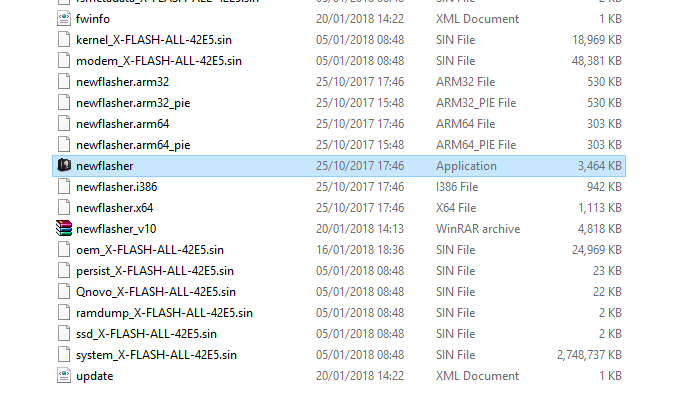
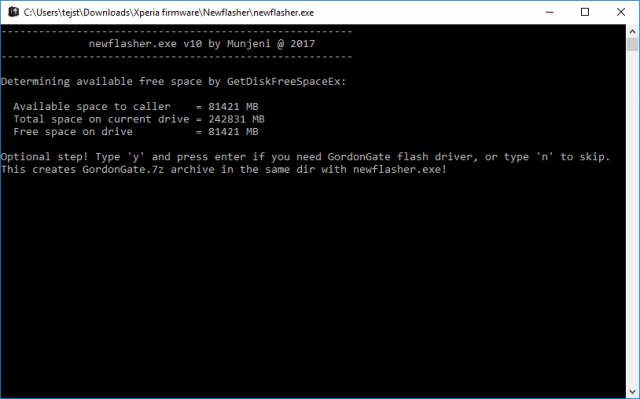
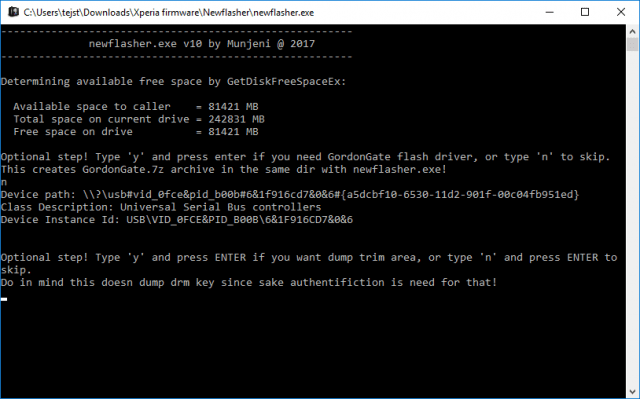
Newflasher may show multiple prompts depending on your package, setup, and phone generation. Read each prompt instead of answering from muscle memory.
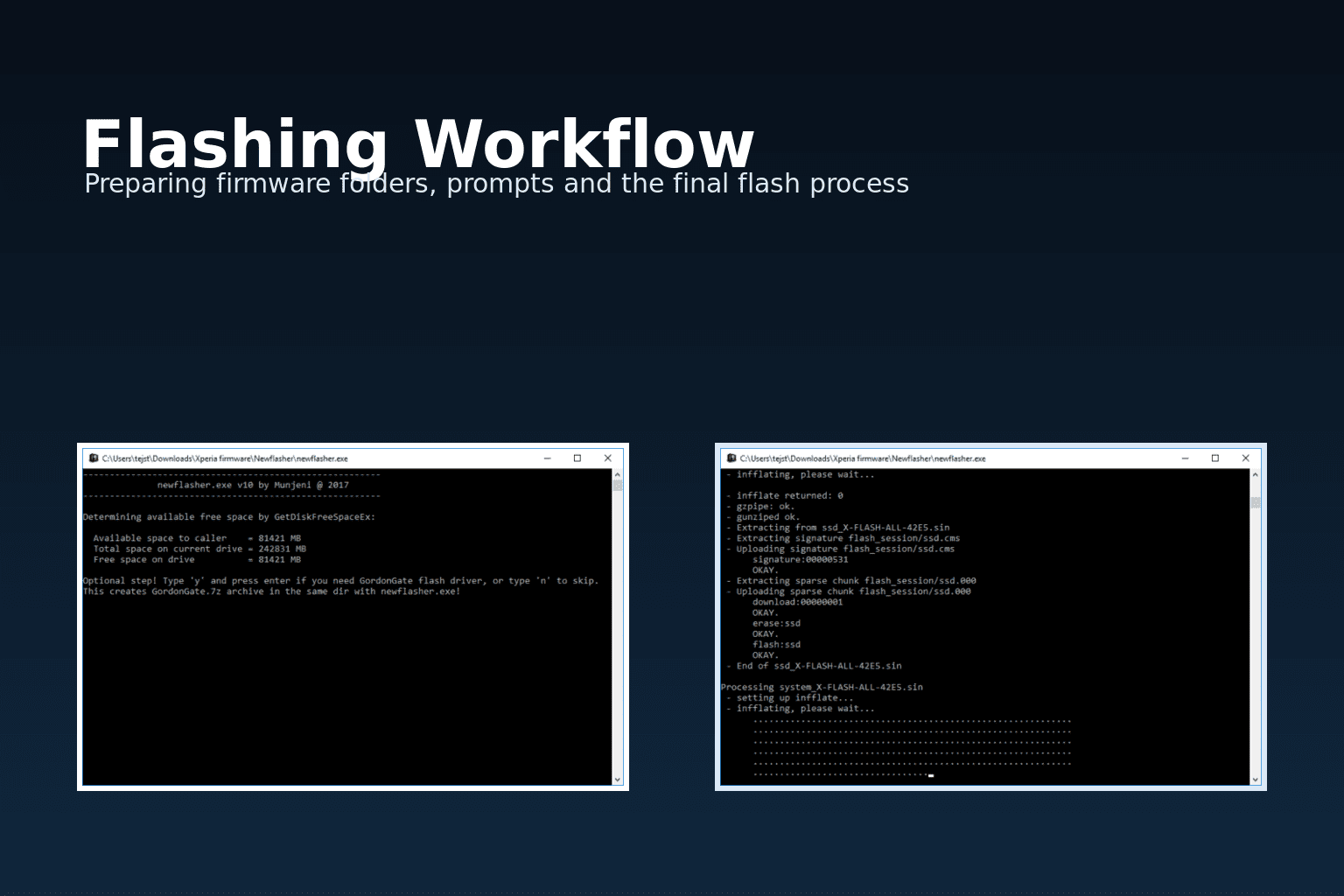
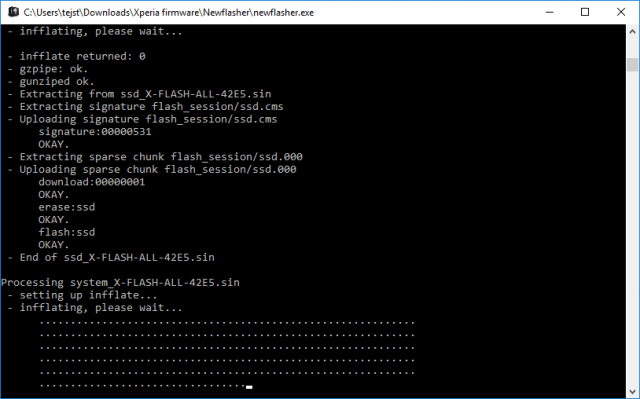
Here are some screenshots from our configuration / flow with an older version of Newflasher:
Clean Flash vs Keep-Data Update
This is where older Newflasher tutorials start to fall apart.
Clean flash
Use a clean flash if:
- you want the safest fresh start
- you are fixing a broken system
- you are changing regions and want to avoid leftover data conflicts
- you do not need to keep the current phone data intact
Keep-data update
For newer builds, especially v52 and above, the modern approach is to use the built-in keep-userdata prompt instead of relying on older blanket file deletion tricks.
That means:
- use a current Newflasher build
- read the keep-userdata prompt carefully
- only preserve data when you are sure the package and scenario fit a no-wipe update
Why this matters:
- older workflows often told users to delete
userdata.sin - Xperia 1 III-era findings showed that
appslog.sin,diag.sin, andmetadata.sincould also matter in no-wipe scenarios v52introduced a proper user-data prompt, which changed the baseline advice
So the better modern rule is this: use the latest build, keep a full backup anyway, and only move into manual file handling if you know exactly why you are doing it.
Prompt Guidance You Should Not Ignore
The exact wording can vary by version and firmware package, but these are the areas that deserve real attention:
Trim area dump
Creating a trim-area related backup can still be worthwhile on a serious first session with the device. It is not the same thing as extracting protected DRM content, but it is still useful recovery-oriented data.
Do not force-flash persist_* content casually. That is one of the areas where careless flashing can create avoidable damage.
Reboot or power-off behavior
Think ahead before choosing the final action. If you plan to continue with fastboot or slot-related work afterward, do not click through the last prompt blindly.
Advanced Note for Rooted or Slot-Based Workflows
If your goal is more advanced than a standard stock firmware flash, you may also need:
- Android Platform Tools
fastboot- boot image extraction and patching steps
- slot checking or active-slot switching
That should stay clearly separated from the basic guide so first-time readers do not mix a standard stock flash with a rooted or slot-managed workflow.
Rollback Protection Warning
Do not assume that flashing an older firmware is always safe on newer Xperia devices.
Rollback protection is a real issue. If your phone has already moved to a newer rollback state, flashing an older ROM can cause boot problems or bootloops. If your goal is downgrading, stop and verify the exact device behavior first.
Common Newflasher Errors and Fixes
TIMEOUT / error code 997 / Overlapped I/O operation is in progress
This is one of the best-known Newflasher problems.
Try these fixes:
- move the cable to a USB 2.0 port
- use another cable
- reinstall the correct Sony drivers
- close software that may still be talking to the device
Failed to verify cms
This is usually a firmware mismatch problem.
Check:
- the exact device model
- the region or customization package
- whether you downloaded firmware for another Xperia variant
Newflasher does not detect the phone
Work through the basics first:
- confirm the phone is in Flashmode
- use Volume Down while connecting
- confirm the LED is green
- reinstall Xperia Companion drivers on Windows
- try another port and cable
Data was wiped when you expected to keep it
This usually happens when users mix old and new instructions. Remember:
v52+introduced a keep-userdata prompt- older no-wipe methods depended on file handling
- not every Xperia generation behaves the same way
- a backup should still exist even when you plan to preserve data
Bootloop after flashing an older firmware
Think rollback protection first, not “the tool is broken.”
FAQ
Do I need an unlocked bootloader to use Newflasher?
Not for a standard stock firmware flash in the normal supported scenario. Advanced rooting, custom image work, and certain downgrade workflows are different.
Do I need FlashTool to use Newflasher?
No. FlashTool is optional. The core workflow only needs the correct firmware files, the right Newflasher build, and a properly prepared device.
Is Xperia Companion mandatory?
Not always. On Windows, it is strongly recommended because it helps with official Sony drivers and software repair. On other platforms, it is more of a supporting utility than a hard requirement.
Where can I track discussion around the tool itself?
If you want the long-running discussion history and community edge cases, keep an eye on the Newflasher XDA thread.
If this guide helped you, bookmark the page and let us know what Xperia device you used it with. For firmware downloads, driver setup, and older Xperia utility coverage, the related Team Android guides linked above are the best place to continue.


Thanks so much for your support
I cannot downgrade Xperia 1 III from Android 12 to Android 11. Stuck in a bootloop. I’ve tried every method mentioned above and on the XDA forums.
Hiya,
Thanks for your great info and advice. Yet none of this has even begun to work for me. The reason is that my Xperia XZ2 (albeit with an unlocked bootloader) absolutely and totally refuses to go into Recovery mode. I bought this phone secondhand recently with a ported version of Sailfish as the OS. I hate this OS and seek only to factory reset to android… yet somehow it refuses to boot into recovery… I have spent many hours watching video instructionals and tried absolutely EVERYthing to no avail at all. Are you able to offer any advice please. Sailfish (Jolla) offer zero assistance as a ported install is without a license agreement, so they have no obligation to help… Have I wasted my money getting this phone?