
If you work on Android phones regularly, you have probably used Fastboot at least once. It is one of the most reliable command-line tools for flashing partitions, unlocking bootloaders, entering different modes, and recovering devices that refuse to boot normally. The Fastboot tool is included in the Android SDK Platform Tools package, the same package that contains ADB.
In this guide, we are sharing a complete Fastboot commands list for Android with a short explanation and practical example for each command. You can bookmark this page as a quick Fastboot cheat sheet and come back whenever you need a command reference / examples when working this tool and your Android device.
fastboot communicates with Android devices when they are in bootloader / Fastboot mode. Unlike ADB (which works when Android is running), Fastboot is mostly used for low-level operations like flashing images, unlocking, slot switching, and boot-time diagnostics. It is a client-server program that includes three components:
- Client: The
fastbootcommand you run on your computer. - Device bootloader: Receives and executes Fastboot commands.
- USB / transport layer: Carries command packets between your computer and phone.
Fastboot is a Unix shell, which means it is fully compatible with Windows, macOS and Linux systems.
Last updated: March 2026 / Android 16 and Android 17
All Fastboot Commands List Directory
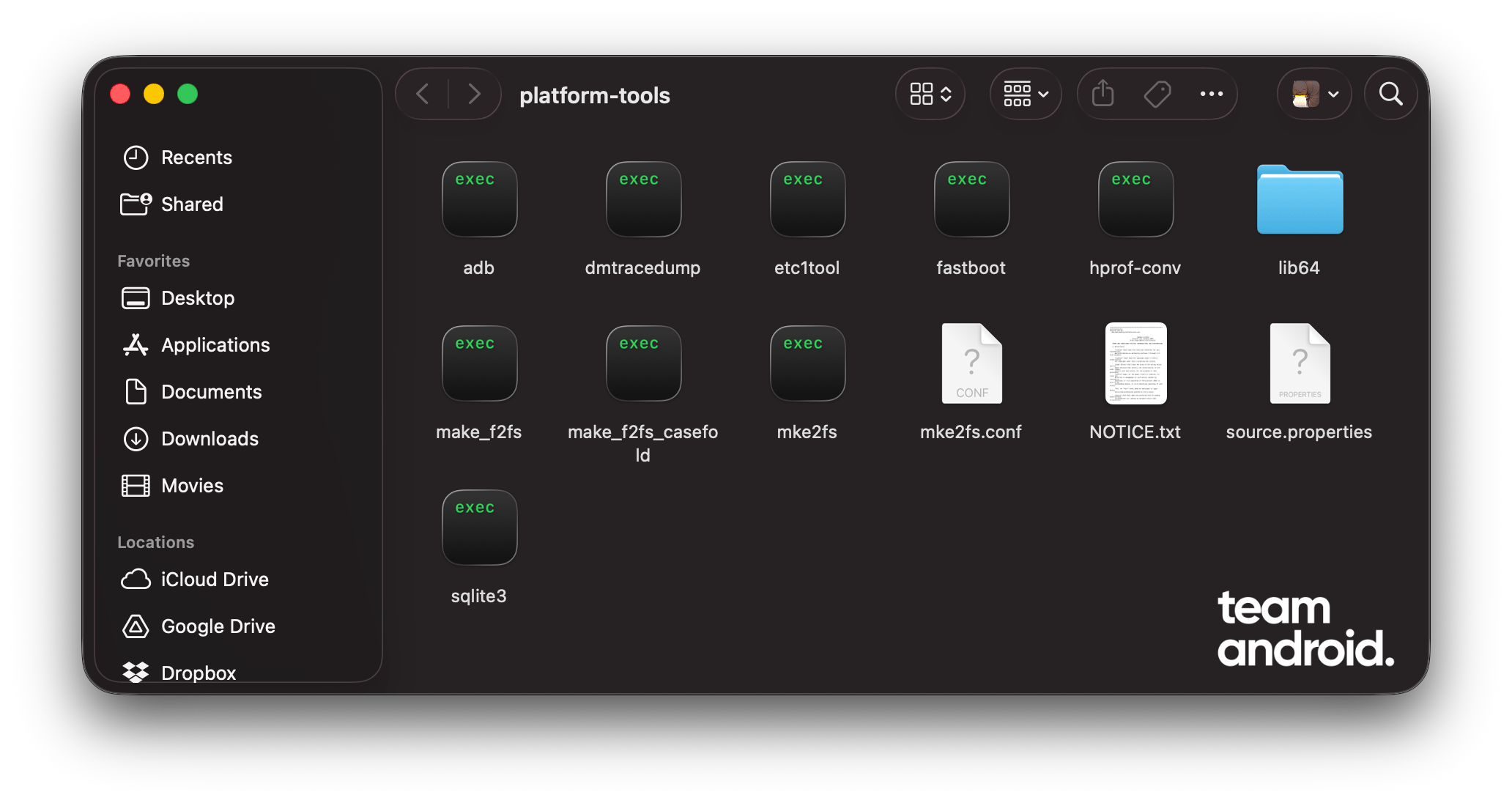
There are a small number of base Fastboot commands, but with different arguments and partition targets, you can do a lot. Before running any command, install device USB drivers, use the latest Platform Tools, and confirm your phone is in Fastboot mode.
Open a terminal or command prompt in your platform-tools folder, then run commands from the list below.
fastboot devices
The fastboot devices command shows all connected devices detected in Fastboot mode.
Example:
fastboot devicesfastboot reboot
Use fastboot reboot to reboot the phone back to Android system.
Example:
fastboot rebootfastboot reboot bootloader
This command reboots the device back into the bootloader/Fastboot screen.
Example:
fastboot reboot bootloaderfastboot reboot recovery
Use this command to reboot directly to recovery (supported on many devices).
Example:
fastboot reboot recoveryfastboot getvar all
fastboot getvar all prints available bootloader variables such as product, bootloader version, and security flags.
Example:
fastboot getvar allfastboot getvar product
Use this to quickly verify the target product codename.
Example:
fastboot getvar productfastboot getvar current-slot
On A/B partition devices, this shows the currently active slot.
Example:
fastboot getvar current-slotfastboot getvar unlocked
This command helps verify whether the bootloader is unlocked.
Example:
fastboot getvar unlockedfastboot flashing unlock
On modern devices, this is the standard command to unlock the bootloader.
Example:
fastboot flashing unlockfastboot flashing unlock_critical
Some devices separate critical partitions. Use this command only if your device documentation explicitly requires it.
Example:
fastboot flashing unlock_criticalfastboot flashing lock
Use this command to relock the bootloader after returning to complete stock firmware.
Example:
fastboot flashing lockfastboot flashing lock_critical
Relocks critical partitions on devices that support critical unlock/lock states.
Example:
fastboot flashing lock_criticalfastboot oem unlock (legacy)
Older OEM bootloaders used fastboot oem unlock instead of fastboot flashing unlock.
Example:
fastboot oem unlockNote: This is a legacy command and may not work on modern devices.
fastboot oem lock (legacy)
Legacy command used on older devices to relock bootloader.
Example:
fastboot oem lockfastboot flash boot boot.img
Flashes a boot.img file to the boot partition.
Example:
fastboot flash boot boot.imgfastboot flash recovery recovery.img
Flashes a recovery image to the recovery partition (older devices and some custom setups).
Example:
fastboot flash recovery recovery.imgfastboot flash system system.img
Writes the system image file to the system partition.
Example:
fastboot flash system system.imgfastboot flash vendor vendor.img
Flashes vendor partition image.
Example:
fastboot flash vendor vendor.imgfastboot flash vbmeta vbmeta.img
Flashes vbmeta metadata required for Android Verified Boot chains.
Example:
fastboot flash vbmeta vbmeta.imgfastboot –disable-verity –disable-verification flash vbmeta vbmeta.img
Commonly used in custom flashing workflows to disable dm-verity and AVB verification.
Example:
fastboot --disable-verity --disable-verification flash vbmeta vbmeta.imgfastboot boot recovery.img
Boots an image temporarily without permanently flashing it.
Example:
fastboot boot recovery.imgfastboot erase userdata
Erases the userdata partition.
Example:
fastboot erase userdatafastboot erase cache
Erases cache partition on devices where it exists.
Example:
fastboot erase cachefastboot -w
Performs a data wipe (typically userdata + cache where applicable).
Example:
fastboot -wfastboot format userdata
Formats the userdata partition using the filesystem expected by the device.
Example:
fastboot format userdatafastboot format cache
Formats cache partition (legacy/partition-layout dependent).
Example:
fastboot format cachefastboot set_active a
On A/B devices, this sets slot a as active.
Example:
fastboot set_active afastboot set_active b
On A/B devices, this sets slot b as active.
Example:
fastboot set_active bfastboot –set-active=a
Alternative syntax used in some scripts to switch active slot.
Example:
fastboot --set-active=afastboot –set-active=b
Alternative syntax for setting slot b active.
Example:
fastboot --set-active=bfastboot flash boot_a boot.img
Flashes boot image directly to slot A.
Example:
fastboot flash boot_a boot.imgfastboot flash boot_b boot.img
Flashes boot image directly to slot B.
Example:
fastboot flash boot_b boot.imgfastboot flash system_a system.img
Flashes system image to slot A.
Example:
fastboot flash system_a system.imgfastboot flash system_b system.img
Flashes system image to slot B.
Example:
fastboot flash system_b system.imgfastboot flashall
Flashes all partitions from a factory image script context.
Example:
fastboot flashallfastboot update image.zip
Flashes a complete update package ZIP that contains Android images and metadata.
Example:
fastboot update image.zipfastboot continue
Leaves Fastboot mode and continues normal boot sequence.
Example:
fastboot continuefastboot snapshot-update cancel
Used on supported devices to cancel a pending snapshot update.
Example:
fastboot snapshot-update cancelfastboot fetch vendor_boot vendor_boot.img (advanced)
On newer Fastboot implementations, fetch can retrieve a partition image from device.
Example:
fastboot fetch vendor_boot vendor_boot.imgNote: Availability depends on device bootloader and Fastboot implementation.
fastboot flashing get_unlock_ability
Checks whether the device allows bootloader unlock.
Example:
fastboot flashing get_unlock_abilityfastboot help
Displays available commands for your installed Fastboot binary.
Example:
fastboot helpFastboot is one of those tools that can save hours when you are recovering a soft-bricked device or doing manual firmware work. At the same time, it is also easy to misuse. Always verify your partition target and image file before pressing Enter, and keep a full stock firmware package ready for recovery.
If you have been a long-time Team Android reader, you must have seen how often we use Fastboot to install custom ROMs and custom recovery images.
And if you think we should add more commands to this cheat sheet, drop them in the comments and we will keep this guide updated. You should also check out the official Android Fastboot documentation page on flashing images.
FAQs
What is Fastboot used for on Android?
Fastboot is used for low-level bootloader operations such as unlocking/relocking the bootloader, flashing partition images, switching A/B slots, and recovering devices that cannot boot into Android.
What is the difference between ADB and Fastboot?
ADB works when Android OS (or recovery with ADB support) is running. Fastboot works at bootloader level before Android starts, so it is used for firmware and partition-level changes.
Why is my phone not showing in fastboot devices?
Usually this is due to missing USB drivers, a bad cable/port, or not being in true Fastboot/bootloader mode. Reinstall drivers, switch USB ports, and run fastboot devices again.
Is fastboot oem unlock still valid?
On many older devices yes, but modern devices generally use fastboot flashing unlock. Always follow the method required by your phone’s manufacturer. It is different for older/newer Google Pixel devices.
Is it safe to use fastboot flash commands?
It is safe only when you are flashing the correct file to the correct partition for your exact model. You need to double-check or triple-check before flashing. A wrong image or partition target can cause bootloops or hard-to-recover states.
What does fastboot -w do?
fastboot -w wipes user data (and cache on supported layouts). You should back up everything first because data removal is irreversible.
Can I switch slots on A/B devices with Fastboot?
Yes. Use fastboot set_active a or fastboot set_active b, then reboot. You can confirm active slot with fastboot getvar current-slot.