

If you are trying to flash firmware, recover a boot loop, or make SP Flash Tool detect an Android / MediaTek (MTK) phone properly, installing the correct MediaTek USB VCOM drivers is still the first step. Without them, Windows may only detect the device for a second, fail to create a COM port, or refuse to talk to the device at the exact moment you need a stable preloader connection.
In this guide, we have collected the MediaTek driver packages that are still the most useful in 2026 and paired them with updated setup instructions for Windows 11, Windows 10, Windows 8 and Windows 7. We have also broken down the difference between VCOM, Preloader, CDC and ADB drivers so you can start with the right package instead of testing random archives one after another.
For most readers, the cleanest approach is simple: start with the newest all-in-one package, keep the auto-installer as your second option, and only move to the legacy MT65xx or MT67xx archives if you are repairing an older device that refuses the modern packs. We have them all listed below for download.
What are MediaTek USB VCOM drivers?
MediaTek USB VCOM drivers are low-level Windows drivers that let your PC communicate with a MTK / MediaTek-powered Android phone or tablet when the device is in flashing, service or preloader mode. These are the drivers that matter when the phone is powered off, soft-bricked, or needs to be recognized by a tool such as SP Flash Tool.
You will usually need them for tasks like flashing stock firmware, restoring a phone that is stuck in a boot loop, forcing Windows to detect a powered-off MediaTek device, or solving connection failures before a repair attempt.
- flashing stock firmware or a full factory image (or some custom ROMs)
- restoring a phone that is stuck in a boot loop
- forcing Windows to detect a powered-off MediaTek device
- using SP Flash Tool, SN Write Tool or similar service utilities
- solving connection failures before a firmware repair attempt
If you only want regular file transfer, MTP mode is enough. If you only want USB debugging, the ADB driver is enough. But for flashing and deeper device recovery / restoration, the preloader and VCOM side of the driver stack is what actually matters.
MediaTek VCOM vs Preloader vs CDC vs ADB
One reason these driver guides often confuse readers (and first timers) is that several different connection types get mixed into one download label. Here is the simple breakdown.
MediaTek Preloader USB VCOM Port
This is the most important driver for SP Flash Tool users. It lets a powered-off MediaTek phone appear briefly as a COM port when connected over USB. If this driver is missing or blocked, the device may connect and disappear before Windows or your flashing tool can use it.
DA USB VCOM or Download Agent connection
After the initial handshake, some flashing workflows move into a deeper transfer stage. That is where the Download Agent side of the connection becomes relevant and helps the firmware transfer continue.
CDC driver
CDC support is often bundled inside larger MTK driver packs. It can matter for device servicing, maintenance tools and communication modes that go beyond the simplest preloader handshake.
ADB driver
ADB works when Android is already booted (fully powered-on) and USB debugging is enabled. It is useful for commands, recovery work and testing, but it does not replace the preloader driver you need for a powered-off flashing workflow.
Download MediaTek USB VCOM Drivers
For most users, the best starting point is an all-in-one package with VCOM, CDC, ADB and related MediaTek support files in one place.
If that package does not install properly on your PC, the next step is to try the newer auto-installer package. The two legacy archives should only be treated as fallbacks for older MT65xx and MT67xx device series.
| Package | Best For | Notes | Download |
|---|---|---|---|
| MTK USB All Driver v1.0.8 | Most users | Best all-in-one package for current MediaTek repair and flashing work. | Download |
| MTK Driver Auto Installer v5.2307 | Quick one-click install | Good second option if the all-in-one package fails or you want a newer installer path. | Download |
| MT65xx USB VCOM Drivers (Legacy) | Older MT65xx phones and tablets | Use only if the newer packages do not work and you are repairing a clearly older MediaTek model. | Download |
| MT67xx USB VCOM Drivers (Legacy) | Older MT67xx devices | Legacy fallback package for older MediaTek devices and older Windows setups. | Download |
The MTK USB All Driver v1.0.8 package remains the most complete option because it bundles more than just a single preloader INF.
During research, it was found to include MediaTek VCOM components, ADB files, CDC support and other pieces that improve the chances of stable detection on modern Windows builds.
Supported MediaTek chipsets and devices
The new driver packages are not only for old MT65xx phones. They can be useful across a much wider range of MediaTek hardware.
- older MT65xx chipsets such as MT6572, MT6580, MT6582 and MT6592
- MT67xx and Helio-era chips such as MT6735, MT6737, MT6750, MT6753, MT6761, MT6765, MT6768 and MT6785
- Helio series devices such as Helio P22, Helio P35, Helio G35, Helio G85 and Helio G90T
- newer Dimensity-based phones such as Dimensity 700, 720, 810, 900, 920, 1100 and related 5G families
You will usually see these chipsets in phones from Xiaomi, Redmi, POCO, realme, OPPO, vivo, Infinix, TECNO, Motorola, Nokia and other Android brands that rely on MediaTek platforms.
If you are not sure which chipset your phone uses, check the full device specifications first so you know whether a MediaTek / MTK flashing workflow is actually the right path.
Before you install
- use a good-quality USB cable
- plug directly into the PC instead of a hub where possible (for best performance and stable connection)
- close SP Flash Tool and other device utilities before changing drivers
- remove older conflicting MTK drivers if you have already tried multiple packages
- use an Administrator account in Windows
- restart the PC after each major driver change for the full changes to take effect
If you also work with non-MediaTek phones, keep our general Android USB Drivers guide bookmarked as well.
How to install MediaTek USB VCOM drivers on Windows
Method 1: Install the all-in-one package first
This is the method most readers should try before doing anything manual.
- Download MTK USB All Driver v1.0.8 from the link above.
- Extract the archive with 7-Zip, WinZip or WinRAR.
- Open the extracted folder and locate the installer or bundled setup files.
- Right-click the installer and choose Run as administrator.
- Finish the setup process and restart your PC.
- Connect your powered-off MediaTek phone and watch Device Manager for a MediaTek or VCOM-style COM port entry.
- If the device still is not detected, disconnect it and test the MTK Driver Auto Installer v5.2307 package next.
Method 2: Manual Device Manager installation
If Windows blocks the installer or the package does not register the preloader port correctly, the manual method is still useful and remains one of the most reliable fallbacks.
- Extract the driver package to an easy-to-find folder.
- Open Device Manager in Windows.
- Click Action and choose Add legacy hardware.
- Click Next, then select Install the hardware that I manually select from a list.
- Choose Show All Devices and continue.
- Click Have Disk and browse to the extracted MediaTek driver folder.
- Select the correct
.inffile for the package you are installing. - Approve the installation warning if Windows asks for confirmation.
- Restart your PC and reconnect the MediaTek device.
This is the same core path many long-time MediaTek users still rely on because it lets you point Windows directly at the package instead of waiting for the installer to guess correctly.
Method 3: Clean out old MTK drivers before reinstalling
If you already tested several broken packages, Windows may be loading the wrong driver every time the phone reconnects. In that situation, cleaning out the old entries first can save a lot of frustration.
- Open Device Manager.
- Expand Ports, Universal Serial Bus controllers and any device category where old MediaTek entries appear.
- Uninstall the old MediaTek or unknown device entries one by one.
- Disconnect the phone, restart the PC, then install your preferred package again.
- Reconnect the phone only after the fresh install is complete.
Advanced users can also clean old driver packages with pnputil, but for most readers the Device Manager route is safer and easier to follow.
Troubleshooting MediaTek USB VCOM driver issues
Here are some common driver issues you might run into; we also have some workarounds and fixes that you should try out. If nothing works, you can always leave us a comment below for our team to help you out.
SP Flash Tool does not detect the phone
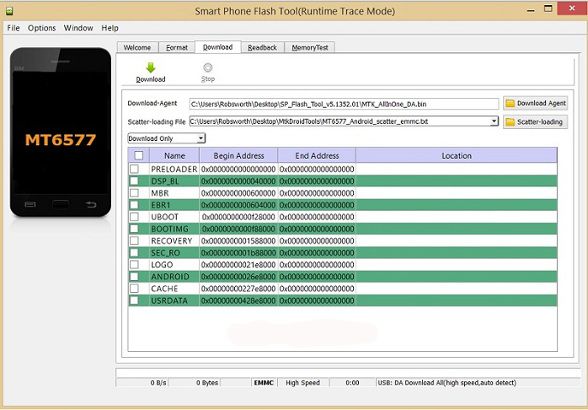
This usually means the preloader driver is not installed correctly or the phone is not staying connected long enough for Windows to assign the proper COM port. Reinstall the all-in-one driver package, try a different USB cable, and connect the phone/tablet while it is fully powered off.
The phone appears for one second and disappears
That brief appearance is typical preloader behavior, but Windows still needs the correct driver to catch it. Watch Device Manager while reconnecting the phone. If the entry flashes and disappears without a proper name, reinstall the driver package and try a direct USB port on the PC.
MediaTek PreLoader USB VCOM Port shows Code 10
A Code 10 error usually points to a bad match between Windows and the installed package. Remove the driver, restart the system, then retry with the all-in-one package or the newer auto-installer before falling back to a legacy archive.
Only ADB works, but flashing mode does not
ADB only proves the phone can talk to Windows while Android is fully booted / powered-on. It does not confirm that the powered-off preloader connection is working. Reinstall the VCOM package and test again with the phone powered off.
No COM port appears in Device Manager at all
Check the cable first, then try another USB port. If that fails, uninstall the existing MTK entries, reboot Windows and perform the manual INF installation path so the correct driver gets registered again.
If you also need the flashing utility itself, use our updated SP Flash Tool download guide.
FAQ
Here are some frequently asked questions about the MTK drivers package:
Which MediaTek USB VCOM driver should I download first?
Start with MTK USB All Driver v1.0.8. It is the most complete package and the best first attempt for most first-time users.
Do these MTK drivers work on Windows 11?
Yes. The refreshed guide is written specifically with Windows 11 and Windows 10 users in mind, while the packages can still help on Windows 8 and Windows 7 in legacy setups.
Are the MT65xx and MT67xx packages still useful?
Yes, but only as legacy fallback packages. They should not be your first choice unless you are fixing an older phone that refuses the newer all-in-one MTK driver packages.
Do I need these drivers for file transfer only?
No. Regular file transfer uses MTP mode when the phone is already powered-on. VCOM drivers matter for flashing, preloader detection and deeper repair tasks.
Can I use these drivers with SP Flash Tool?
Yes. In fact, that is one of the main reasons to install them in the first place.
MediaTek USB VCOM drivers are still relevant because MediaTek flashing and recovery work still depends on reliable low-level USB detection. The biggest mistake most users make is downloading a random old archive first, when a newer all-in-one package usually gives them a cleaner and more stable start.
Begin with the main MTK USB All Driver package, keep the auto-installer as your second option, and only move to the legacy MT65xx or MT67xx mirrors when you know you are dealing with an older device. If you run into a specific detection issue, drop a comment with your phone model and the exact error you are seeing, and we can point you in the right direction.


Greetings
Please I can you upload firmware for mediatek 6797 thanks.
Hi,
I have a Helio P23 MT6763V / CT processor, so I tried to install the MT67xx VCOM driver. This worked, but Device Manager reports an error. I have Windows 10, but during installation I only found a Windows 7 driver in the package. (I did not dare to try the MT65xx VCOM driver.)
Have any idea?
TNX
oppo a1k phone lock reset